> ## Documentation Index
> Fetch the complete documentation index at: https://doc.sensolus.com/llms.txt
> Use this file to discover all available pages before exploring further.
# Tracker activation
> The best way to activate and install your tracker.
export const HeaderBadge = ({type, checkDms = false}) => {
function addGroupBadge(h1Id) {
const h1Element = document.getElementById(h1Id);
if (!h1Element) {
console.error(`Element with ID "${h1Id}" not found`);
return;
}
if (h1Element.querySelector('.header-badge')) {
console.warn('Header badge already exists on this element');
return;
}
const badge = document.createElement('span');
badge.className = 'header-badge';
var badgeText;
var badgeColor;
switch (type) {
case 'public':
badgeText = 'Public';
badgeColor = '#858585ff';
break;
case 'end-user':
badgeText = 'End-User';
badgeColor = '#0071a1';
break;
case 'multi-org':
badgeText = 'Multi-Org';
badgeColor = '#0071a1';
break;
case 'partner':
badgeText = 'Partner';
badgeColor = '#0071a1';
break;
case 'partner-pricing-eu':
badgeText = 'Partner-EU';
badgeColor = '#0071a1';
break;
case 'partner-pricing-us':
badgeText = 'Partner-US';
badgeColor = '#0071a1';
break;
case 'partner-pricing-world':
badgeText = 'Partner-World';
badgeColor = '#0071a1';
break;
case 'sensolus-internal':
badgeText = 'Sensolus only';
badgeColor = '#ffa858';
break;
default:
badgeText = type;
badgeColor = '#ffa858';
}
badge.textContent = badgeText;
badge.style.cssText = `
background-color: ${badgeColor};
color: white;
padding: 0.3em 0.8em 0.3em 0.8em;
border-radius: 6px;
font-size: 0.4em;
margin-left: 20px;
vertical-align: middle;
`;
h1Element.appendChild(badge);
}
function checkDocumentationServerAccess(type) {
fetch('https://cloud.sensolus.com/documentation/user', {
method: 'GET',
headers: {
'Accept': 'application/json'
},
credentials: 'include'
}).then(response => {
if (!response.ok) {
console.error('Could not fetch documentation server user:', response);
}
return response.json();
}).then(user => {
const compatibleGroups = {
"NORMAL": ["end-user", "public"],
"PUBLIC": ["public"],
"PARTNER": ["partner", "public", "end-user", "multi-org"],
"MULTI_ORG": ["multi-org", "public", "end-user"],
"SYSTEM": ["public", "end-user", "multi-org", "partner", "sensolus-internal"]
};
const allowedGroups = compatibleGroups[user.orgType] || [];
const compatiblePriceListGroups = {
"EU": ["partner-pricing-eu"],
"US": ["partner-pricing-us"],
"WORLD": ["partner-pricing-eu", "partner-pricing-us", "partner-pricing-world"]
};
allowedGroups.push(...compatiblePriceListGroups[user.orgType === "SYSTEM" ? "WORLD" : user.priceList] || []);
if (!allowedGroups.includes(type)) {
if (user.orgType === 'PUBLIC') {
window.location.href = '/login?redirect=' + encodeURIComponent(window.location.pathname);
} else {
window.location.href = '/logout';
}
}
addGroupBadge("page-title");
}).catch(error => {
console.error('Could not fetch documentation server user:', error);
addGroupBadge("page-title");
});
}
useEffect(() => {
console.info("adding badge");
addGroupBadge("page-title");
});
useEffect(() => {
console.info("checking server access for type" + type);
if (type && type !== 'public' && checkDms) {
checkDocumentationServerAccess(type);
}
}, [type]);
return <>;
};
## Tracker activation
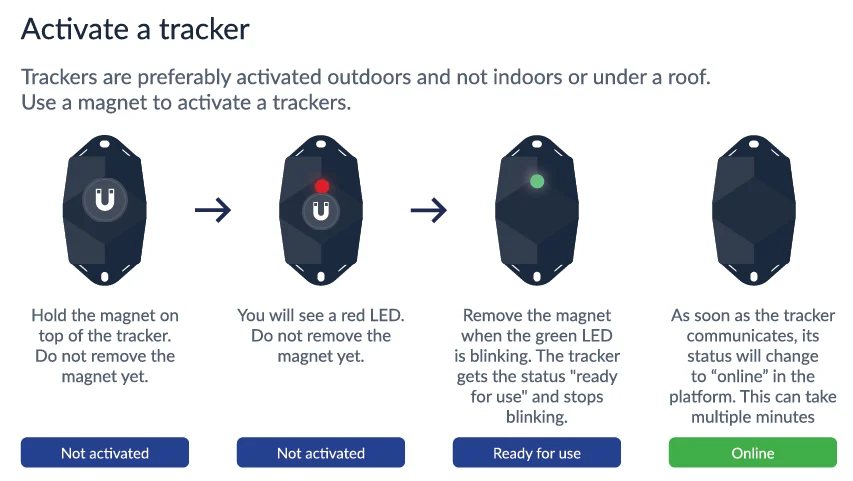
Tracker activation is needed so it will perform localization and communicate with the platform. Trackers may be shipped in non-activated mode to conserve battery life while they are not effectively deployed. It is also possible that trackers are already activated upon delivery to you - depending on what was requested with the purchase order.
For most tracker models, a magnet is used for tracker activation.
When you activate a tracker the status of the tracker on the platform changes from the state to the state.
Each time you install a tracker on one of your assets, please make sure to keep track of which tracker (identified by its serial number) is installed on which asset (identified by the asset's identifier).
The most effective way to create this link between a particular asset and a particular tracker is by using the [Sensolus mobile application](/docs/mobile_app/mobile_app_overview), where you can scan the tracker's QR code or barcode, and type in or scan the asset's unique identifier as well.
It is very important to verify that the tracker that is installed on an asset has been correctly activated, before allowing the asset to be used again. To verify that the tracker has been activated, make sure your tracker has the marker in the Sensolus platform. The Online status should appear within 5 minutes after holding the magnet to the tracker and the green LED blinking has stopped.
Before mounting the tracker to the asset it is important to activate the tracker.
## Activation troubleshooting
It may happen that the tracker does not come immediately (within 5 minutes) online in the Sensolus platform. If this happens, the reason is often that the activation of the network subscription by the operator takes longer than usual (different back-end systems may be involved, depending on the local operator that the tracker is using to connect).
If the activation wasn't successful after 5 minutes, the tracker will eventually try to activate again but only after waiting 24 hours (this delay is applied to avoid draining the battery). However, to confirm the correct deployment of the tracker on the asset, it is advisable to ensure that the tracker is online.
If after 5 minutes of waiting the status hasn't changed to online yet, hold the magnet again for 5 seconds on top of the tracker to trigger a new activation attempt.
These attempts should be repeated until the tracker is online. In rare cases, we have noticed that the activation by operators took several hours to complete. If activation does not succeed after 12 hours, this may indicate another problem - contact support in that case.
 When you activate a tracker the status of the tracker on the platform changes from the
  state to the
  state.
Each time you install a tracker on one of your assets, please make sure to keep track of which tracker (identified by its serial number) is installed on which asset (identified by the asset's identifier).
The most effective way to create this link between a particular asset and a particular tracker is by using the [Sensolus mobile application](/docs/mobile_app/mobile_app_overview), where you can scan the tracker's QR code or barcode, and type in or scan the asset's unique identifier as well.
It is very important to verify that the tracker that is installed on an asset has been correctly activated, before allowing the asset to be used again. To verify that the tracker has been activated, make sure your tracker has the
state.
Each time you install a tracker on one of your assets, please make sure to keep track of which tracker (identified by its serial number) is installed on which asset (identified by the asset's identifier).
The most effective way to create this link between a particular asset and a particular tracker is by using the [Sensolus mobile application](/docs/mobile_app/mobile_app_overview), where you can scan the tracker's QR code or barcode, and type in or scan the asset's unique identifier as well.
It is very important to verify that the tracker that is installed on an asset has been correctly activated, before allowing the asset to be used again. To verify that the tracker has been activated, make sure your tracker has the