

Overview
ChatGPT is OpenAI’s conversational AI application. By connecting ChatGPT to the Sensolus platform through the MCP (Model Context Protocol) connector, you can interact with your IoT data using natural language queries.Connecting a custom MCP server in ChatGPT requires a ChatGPT Plus, Pro, or Team subscription.
Connecting as a Team Member
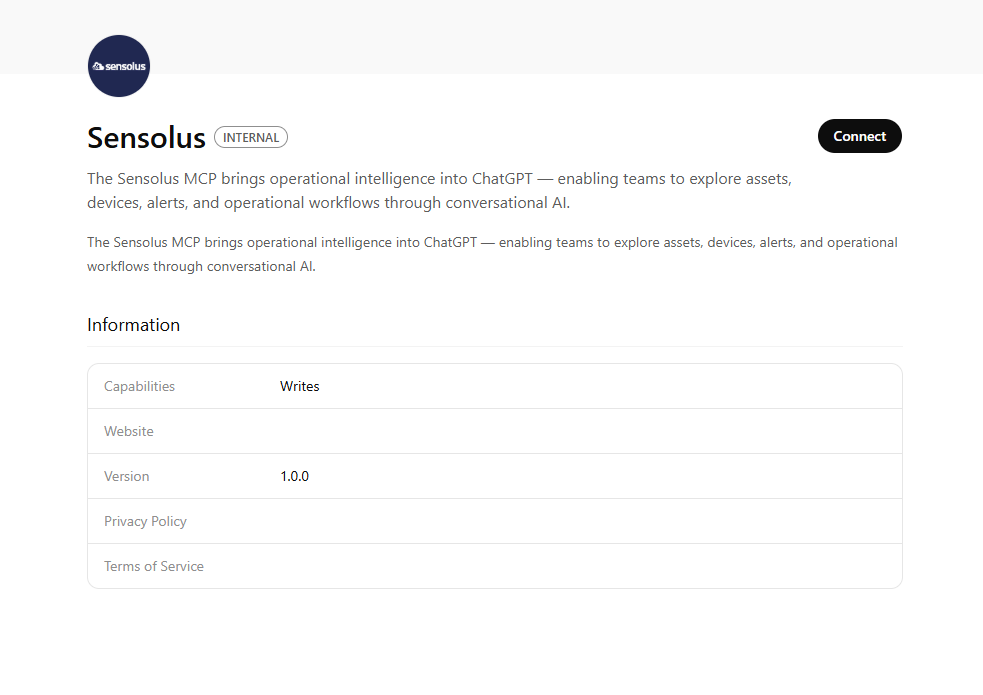
If someone in your ChatGPT organization has already set up the Sensolus connector, you can simply find and enable it from the Apps page. Search for “Sensolus” and click on the connector marked as INTERNAL.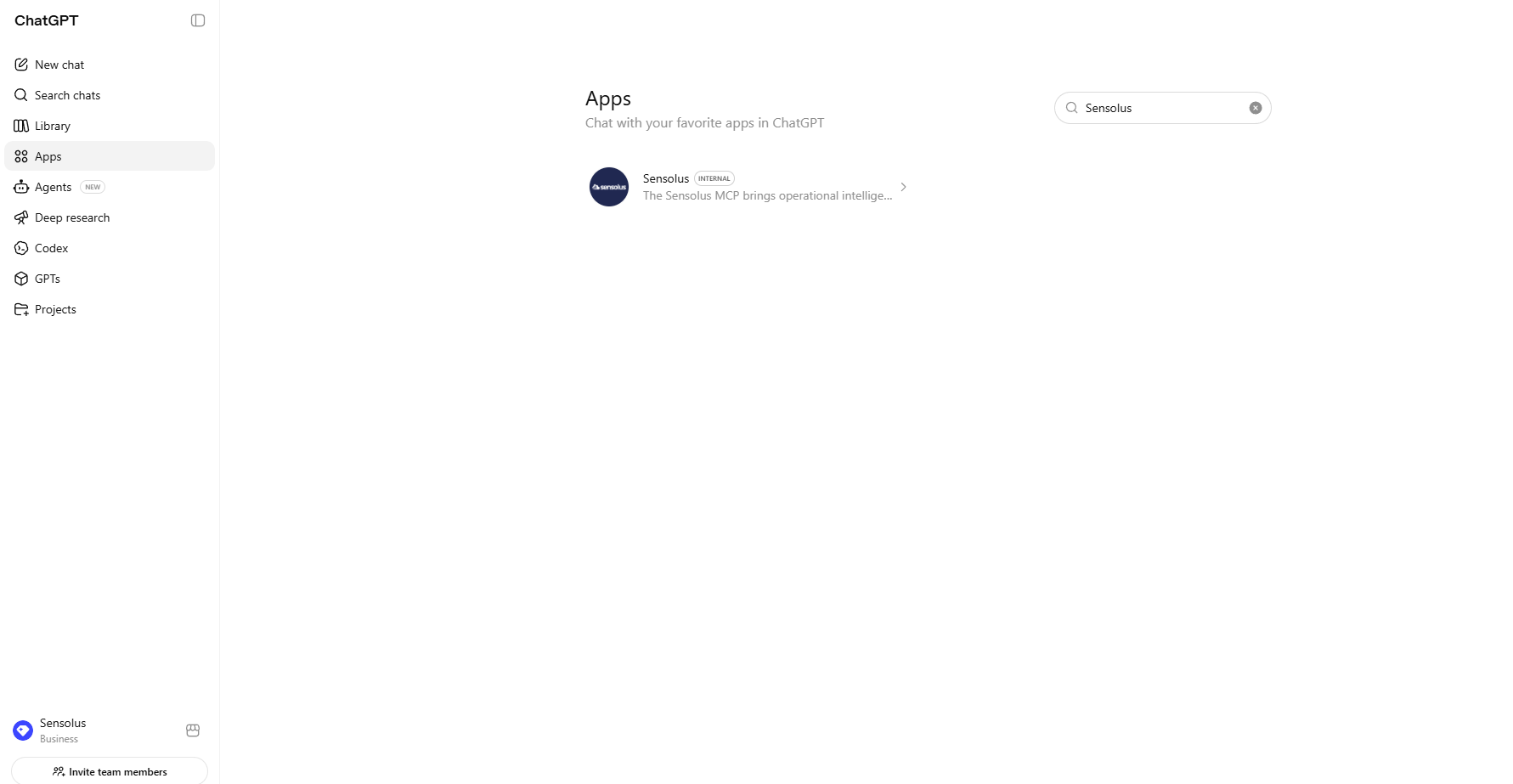
First-time Setup
If the Sensolus connector has not yet been added to your ChatGPT organization, one team member needs to perform the initial setup below. Once completed, all other team members can connect using the simpler method above.1
Open ChatGPT settings
In ChatGPT, click your profile icon and select Settings.
2
Navigate to Apps
In the settings menu, select Apps from the left sidebar.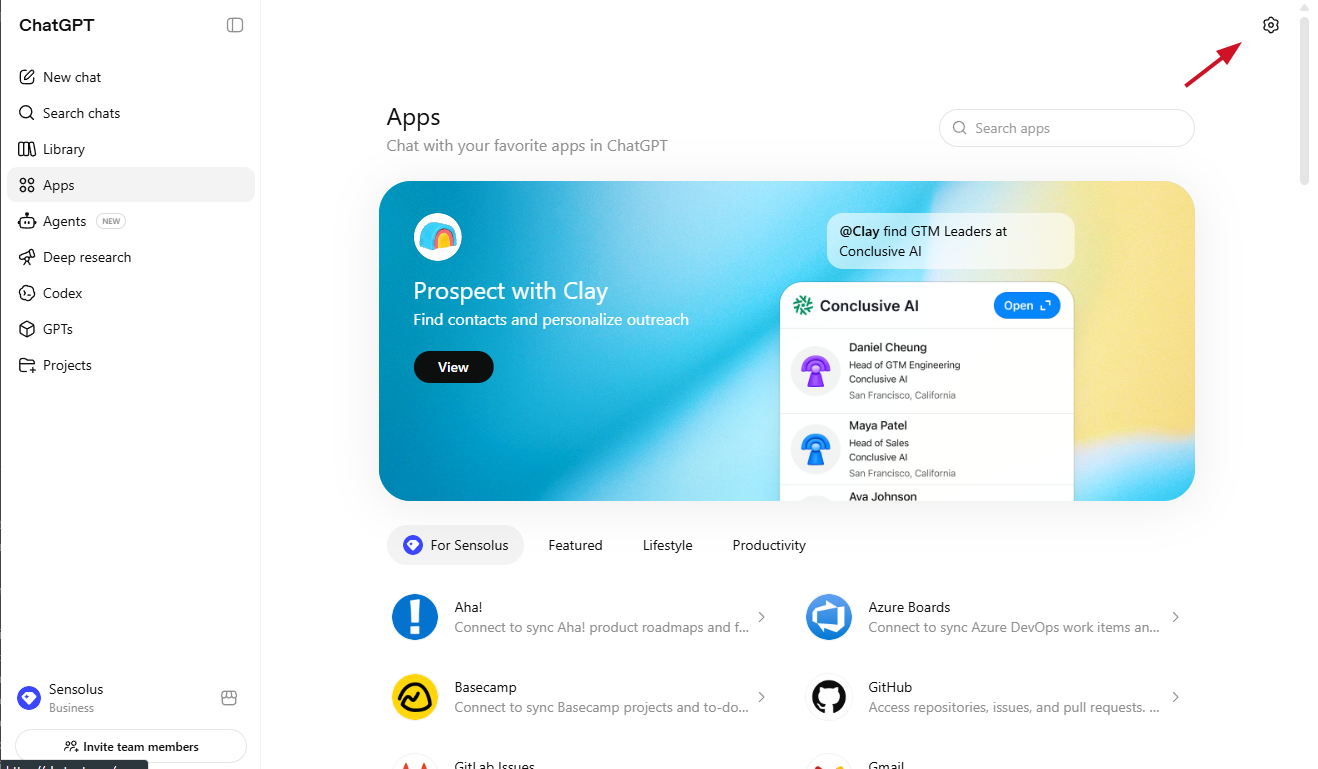
3
Open Advanced settings
Click Advanced settings at the bottom of the Apps page.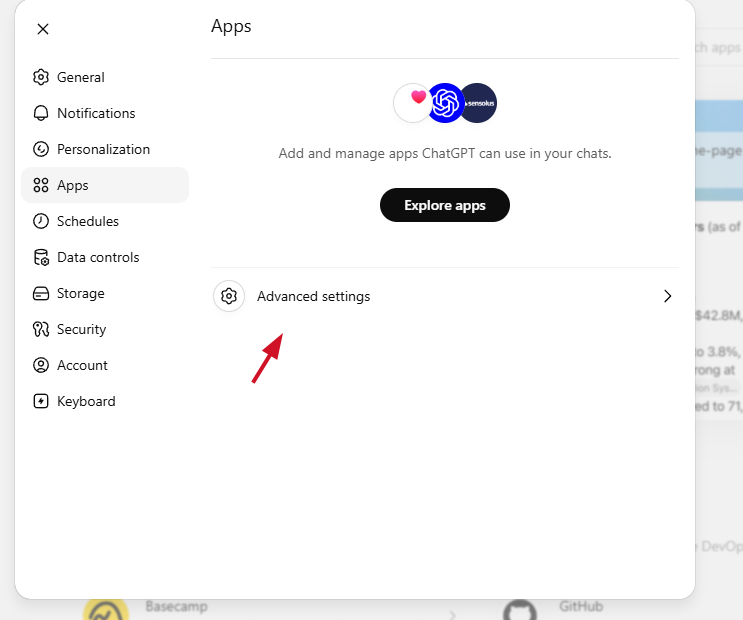
4
Enable Developer mode
Toggle Developer mode on. This allows you to add custom MCP connectors.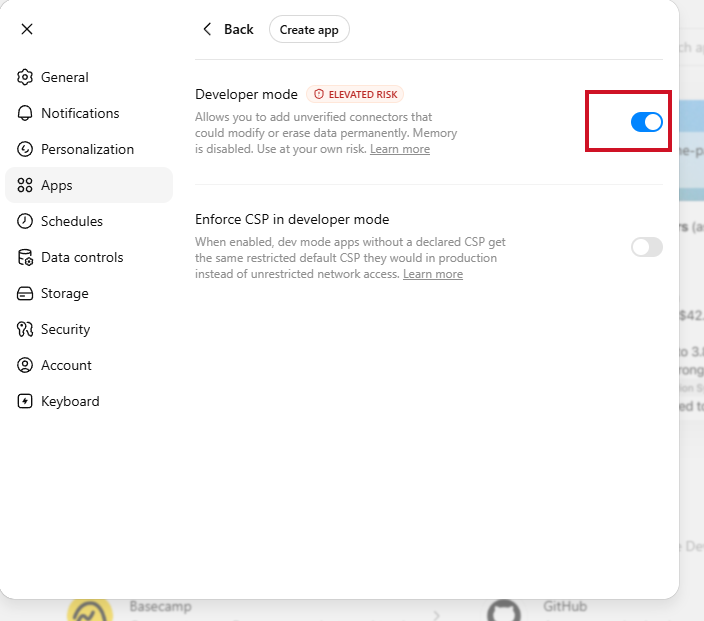
5
Create a new app
Go back to the Apps page and click Create app. Fill in the following details: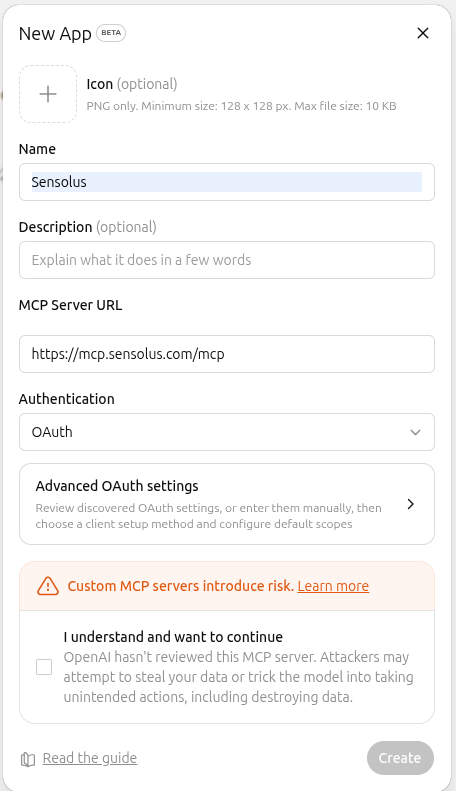
- Name:
Sensolus - MCP Server URL:
https://mcp.agents.sensolus.com/mcp - Authentication:
OAuth
6
Authorize the connection
ChatGPT will open the Sensolus authorization page in your browser. Log in with your Sensolus credentials and click Approve to grant ChatGPT access to your account.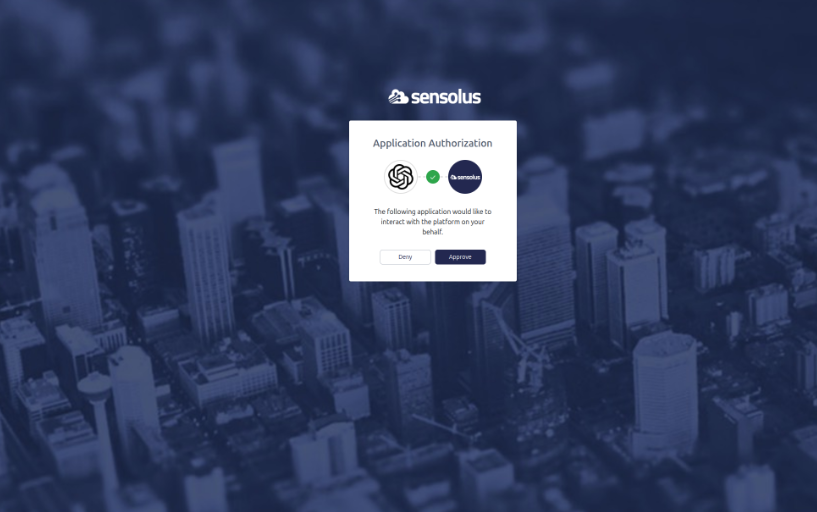
7
Confirm successful connection
After authorization, navigate back to Settings → Apps and click on the Sensolus app. You should see the connection details showing the URL, OAuth authorization, and connection date.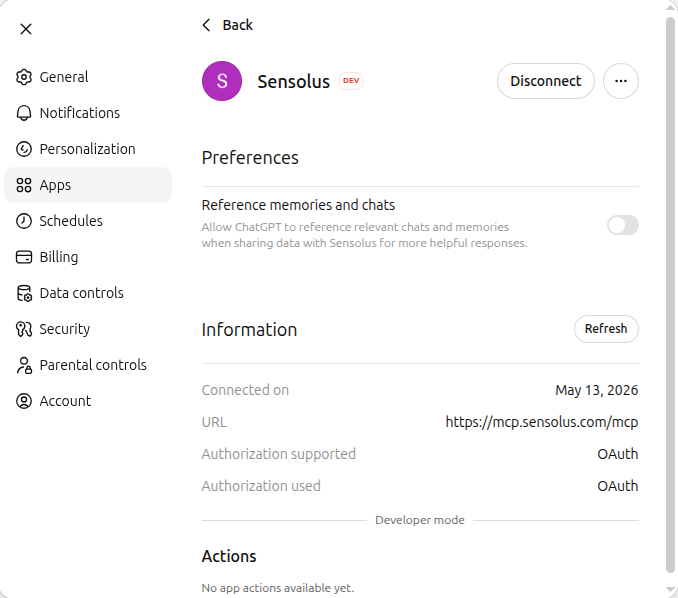
Using the Connector
Once connected, you can query your Sensolus data directly from ChatGPT using natural language. ChatGPT will automatically call the appropriate Sensolus tools and return the results.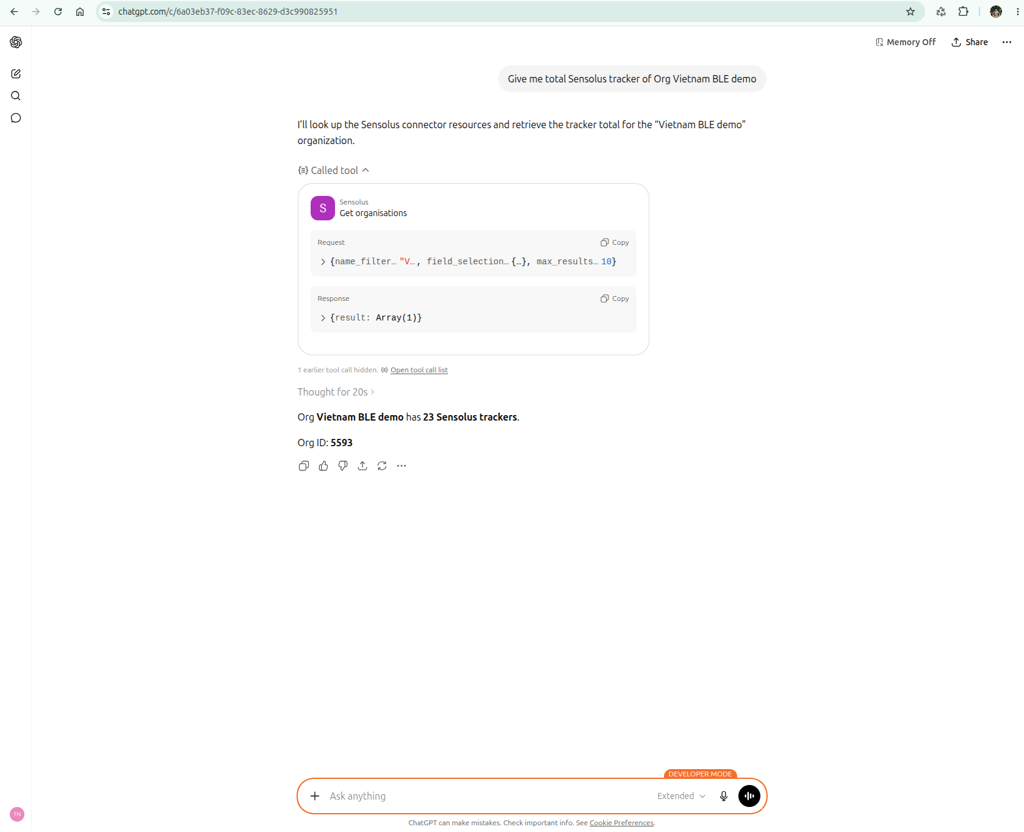
Troubleshooting
Authorization not completing
If the OAuth authorization doesn’t complete:- Ensure pop-ups are not blocked in your browser
- Verify your Sensolus account has appropriate permissions
- Try the authorization process again
SSO authentication
If your organization uses Single Sign-On (SSO), make sure you are already logged in to the Sensolus platform in your browser before starting the OAuth flow.Next Steps
- Review MCP Connector capabilities to see what you can do
- Explore tips and examples for effective use