

Overview
OAuth2 authentication provides the simplest and most secure way to connect Claude to Sensolus. The platform handles all authentication automatically through your browser - no manual API key management required.Benefits
- Seamless setup: No need to copy and paste API keys
- Automatic token management: Access tokens are refreshed automatically
- User-scoped access: Claude operates with your specific permissions
- Easy revocation: Disconnect anytime from Claude settings
- Secure: OAuth2 industry-standard authentication
Connection Steps
1
Access connectors settings
In Claude, open the menu and select Add connectors.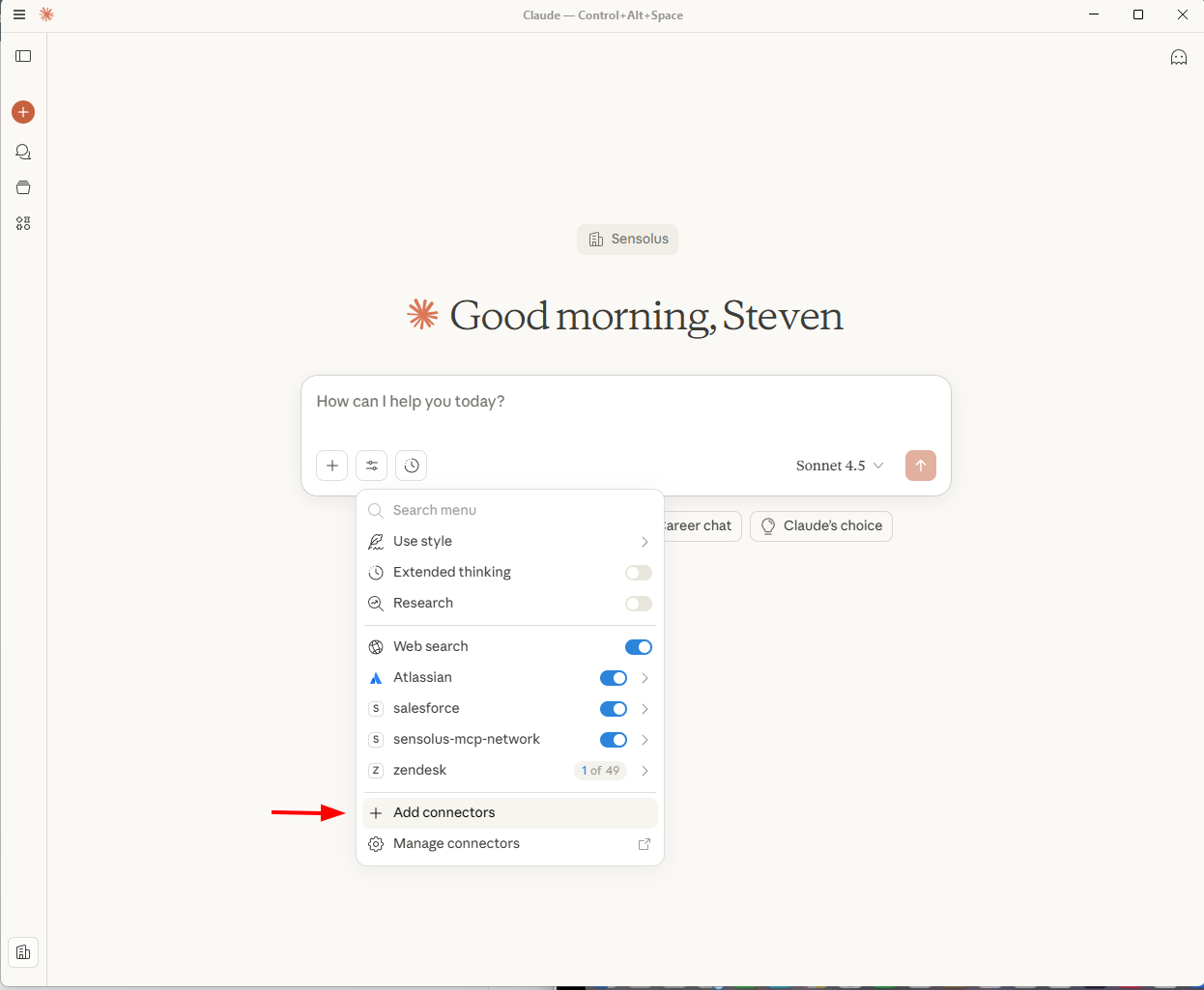
2
Browse available connectors
Click Manage connectors to view all available MCP connectors.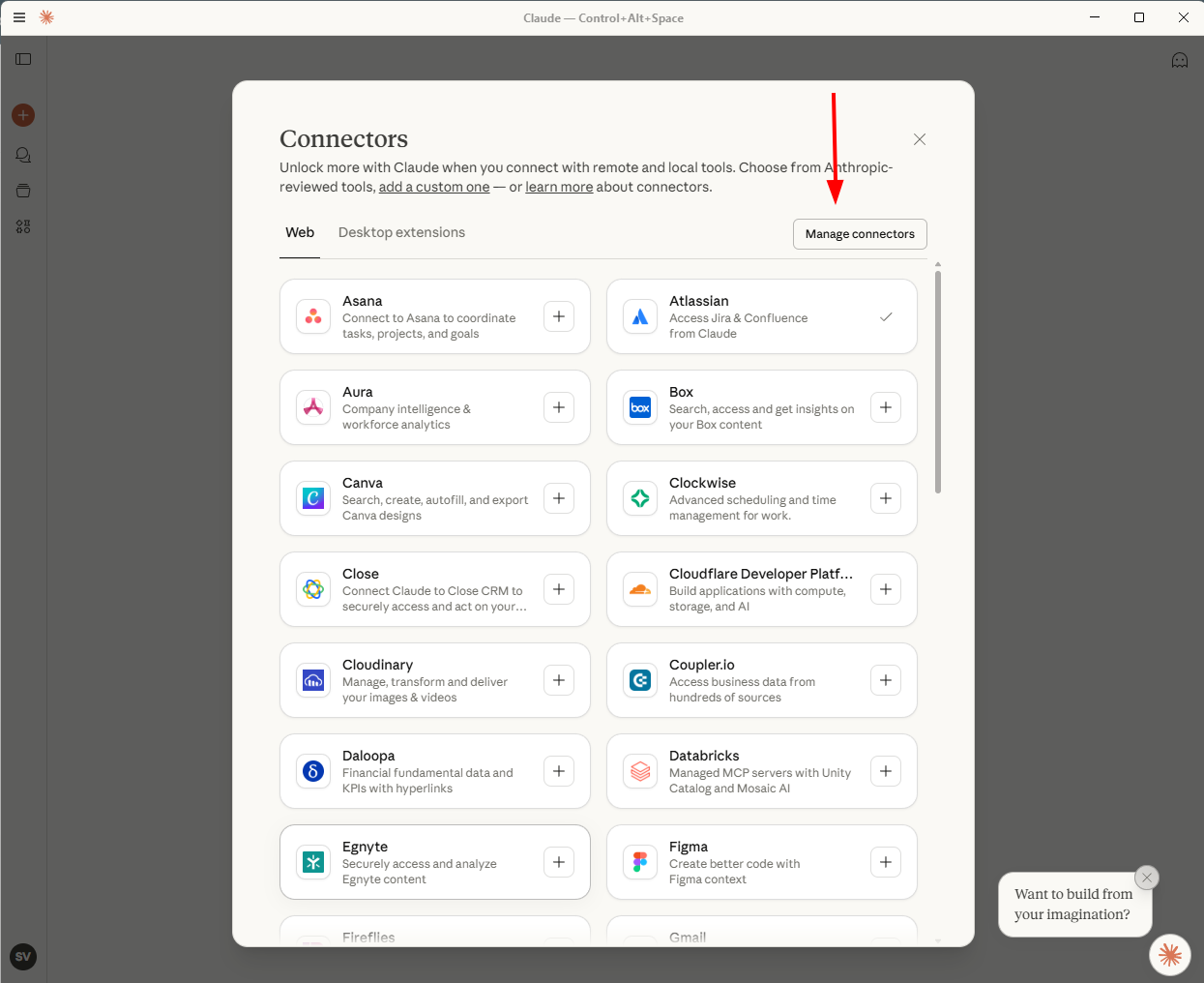
3
Add custom connector
Click Add custom connector to configure the Sensolus MCP connector.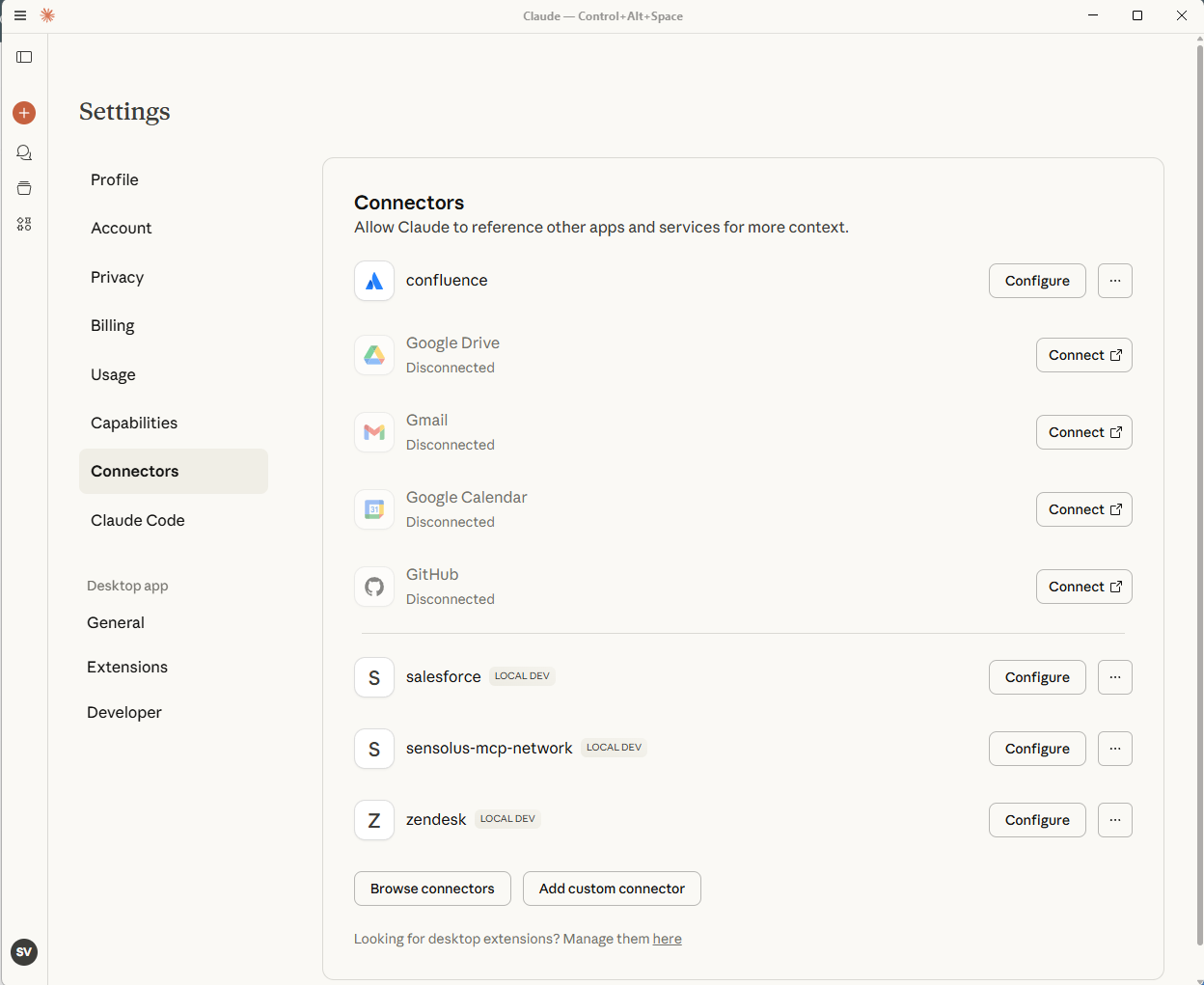
4
Configure connector details
Enter the connector name (e.g., “Sensolus”) and the Remote MCP server URL: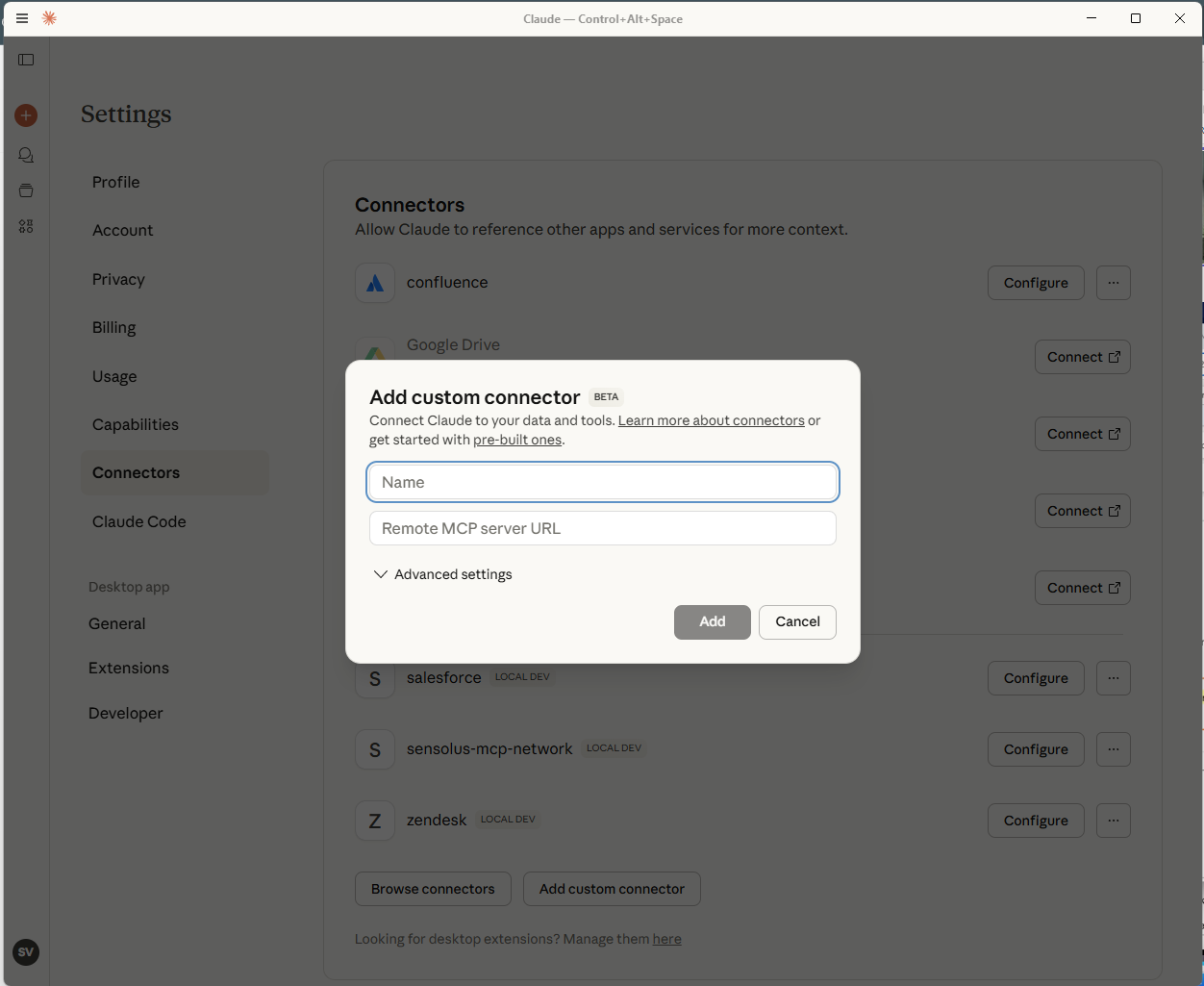
5
Restart Claude
After adding the connector, restart Claude completely for the changes to take effect.
6
View connector in list
After restarting, navigate back to Settings → Connectors. You’ll see the Sensolus connector in your list with “Disconnected” status.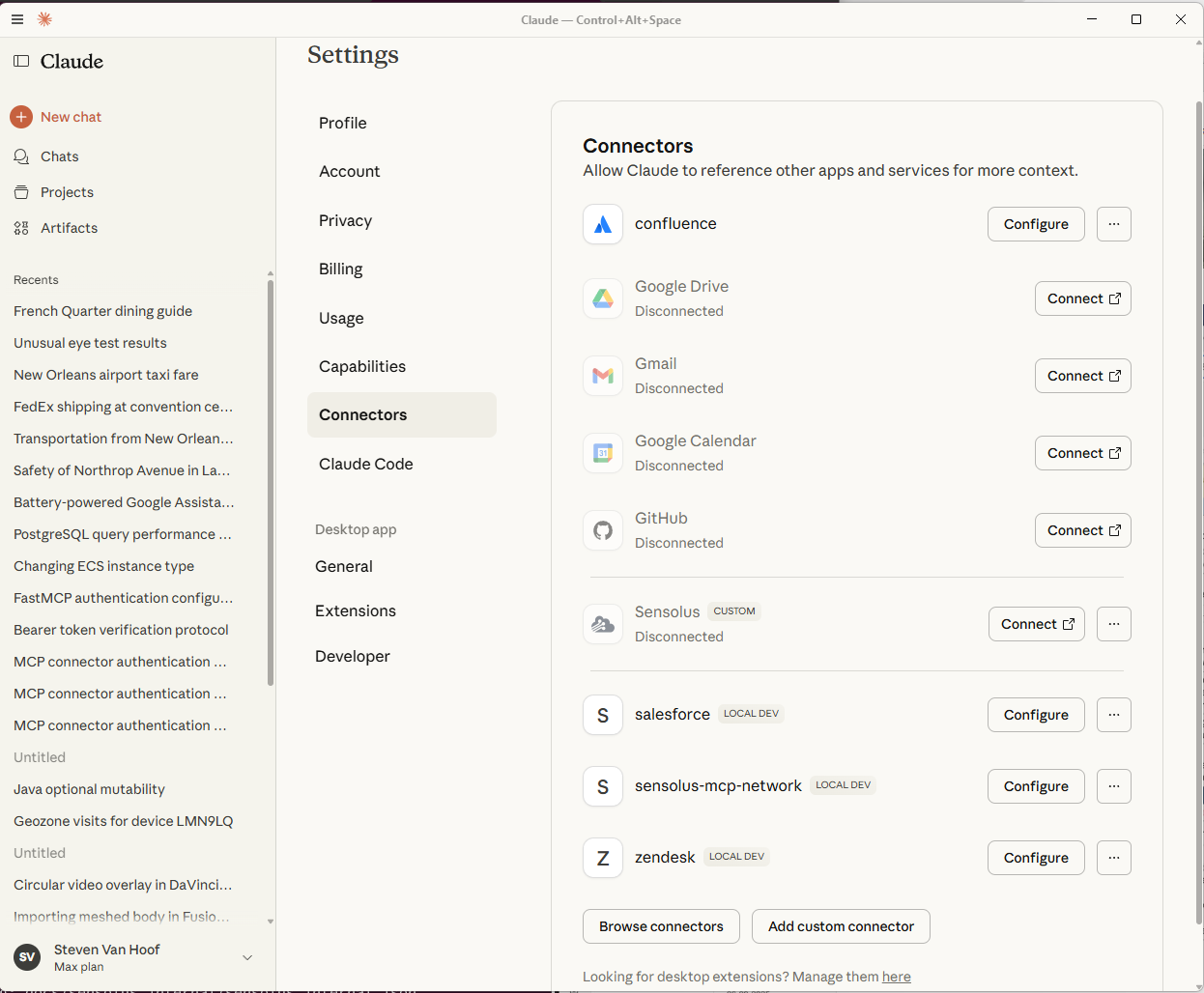
7
Authorize connector
Click Connect on the Sensolus connector. This will open the Sensolus authorization page in your browser. Click Approve to grant Claude access to your Sensolus account.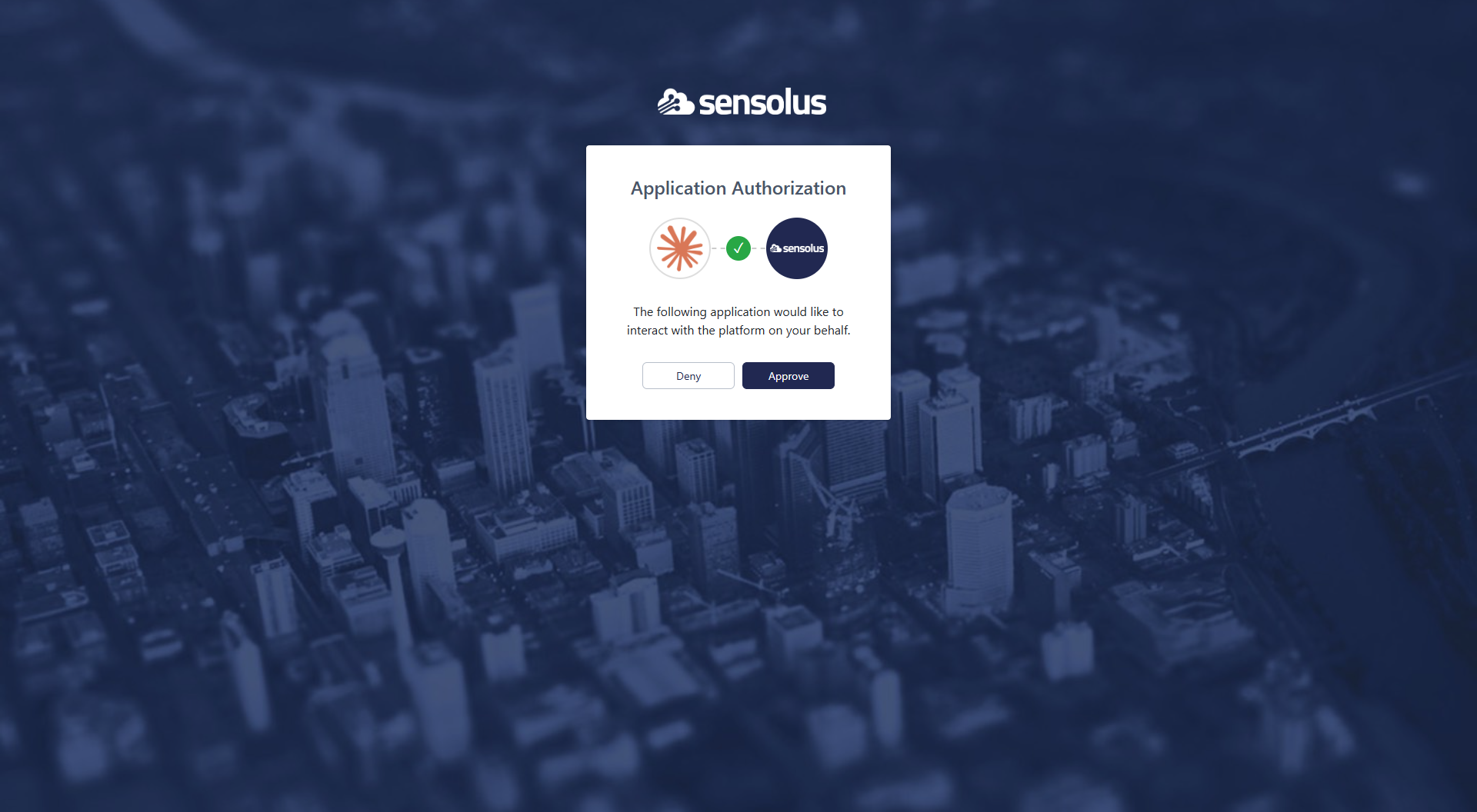
8
Confirm successful connection
After authorization, Claude will confirm the connection was successful.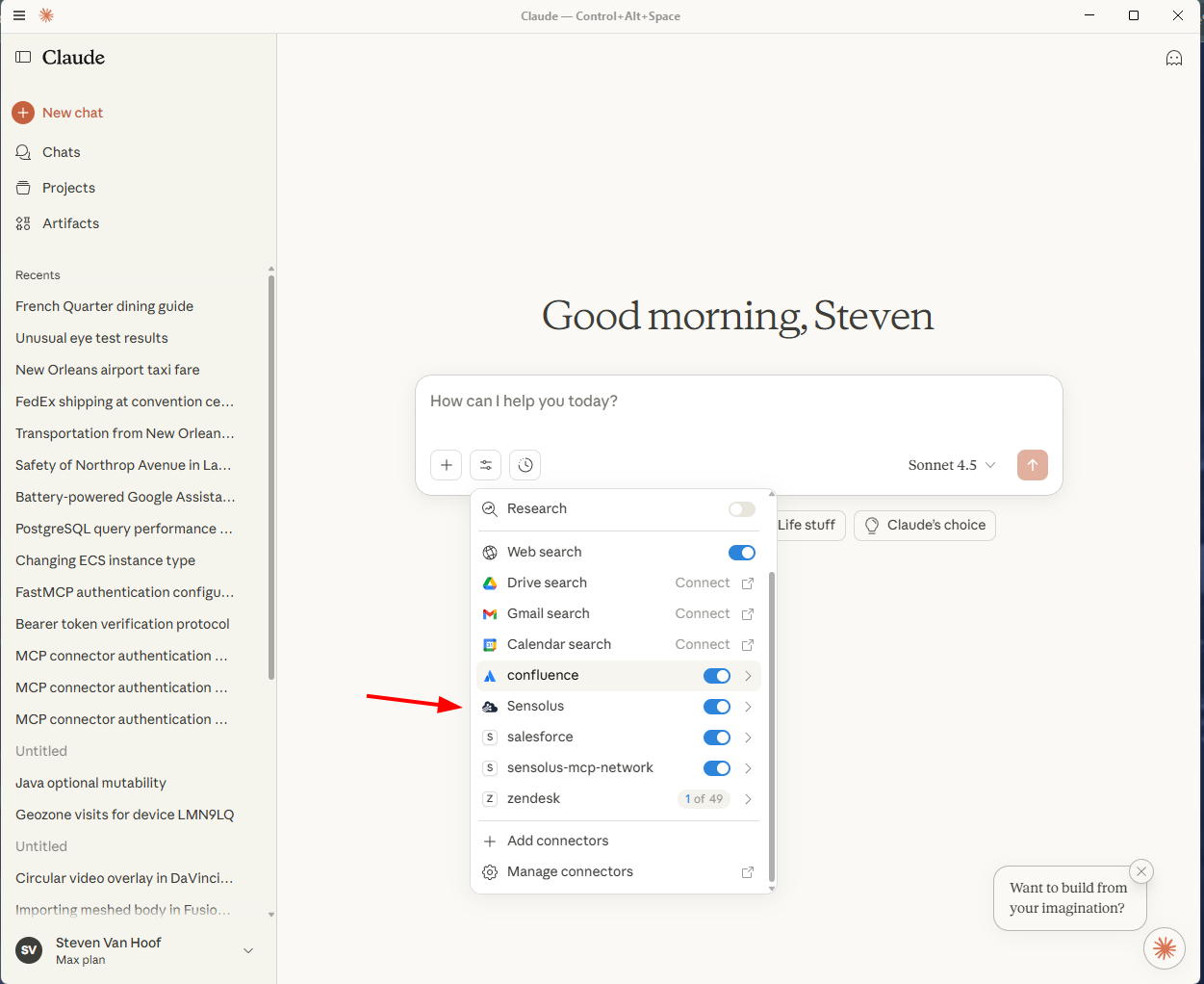
9
Verify connector is enabled
Return to Claude and verify the Sensolus connector is now enabled. You can access it through the connectors menu when starting a new chat or within projects.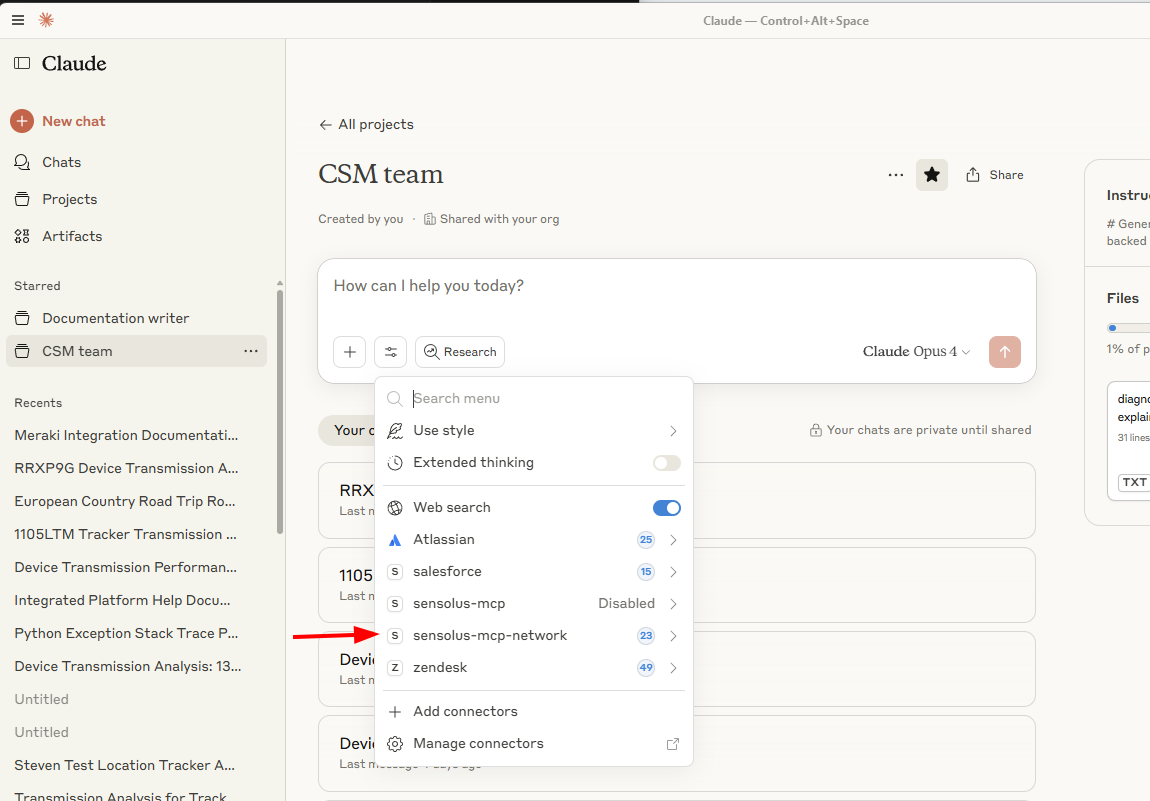
Managing Your Connection
You can manage the Sensolus connector from Claude’s settings:- Navigate to Settings → Connectors
- Find the Sensolus connector in your list
- Click Configure to view connection details or disconnect
Troubleshooting
Authorization Not Completing
If the OAuth authorization doesn’t complete:- Ensure pop-ups are not blocked in your browser
- Verify your Sensolus account has appropriate permissions
- Try the authorization process again
SSO Authentication
If your organization uses Single Sign-On (SSO): Claude will open the generic Sensolus platform URL rather than your organization-specific URL. To ensure smooth authorization:- Make sure you are already logged in to the Sensolus platform in your browser before starting the OAuth flow
- Keep your browser session active
- If you see a login screen, authenticate using your organization’s SSO method
- The OAuth authorization will proceed normally once authenticated
Connector Not Appearing
If the Sensolus connector doesn’t appear after authorization:- Restart Claude completely
- Check your internet connection
- Verify the MCP server URL is correct:
https://mcp.agents.sensolus.com/mcp
Connection Errors
If you receive connection errors:- Verify your internet connection
- Ensure your Sensolus account is active
- Try disconnecting and reconnecting the connector
Next Steps
- Explore Using Claude with Sensolus
- Review MCP Connector capabilities
- Consider creating a Claude team for collaborative use