

Overview
API key authentication provides advanced users with full control over the Claude Desktop connection configuration. This method is suitable for team setups, organizations with specific API key management requirements, or users who prefer manual configuration.When to Use API Keys
- You need to use organization-level API keys
- You want fine-grained control over API permissions
- You’re setting up Claude for multiple team members
- Your organization has specific API key management policies
Prerequisites
Before configuring Claude Desktop with API keys:- Claude Desktop installed on your computer (download from Anthropic)
- Sensolus API access token from your organization
- mcp-proxy installed on your system
- Administrator access to modify configuration files on your system
Installing mcp-proxy
Themcp-proxy tool is required to connect Claude Desktop to the Sensolus MCP server.
Option 1: With uv (recommended)
uv is a fast Python package installer and resolver. Install it first: macOS/Linux:Option 2: With pip
If you already have Python installed:Option 3: With pipx
If you have pipx installed:Configuration Steps
1
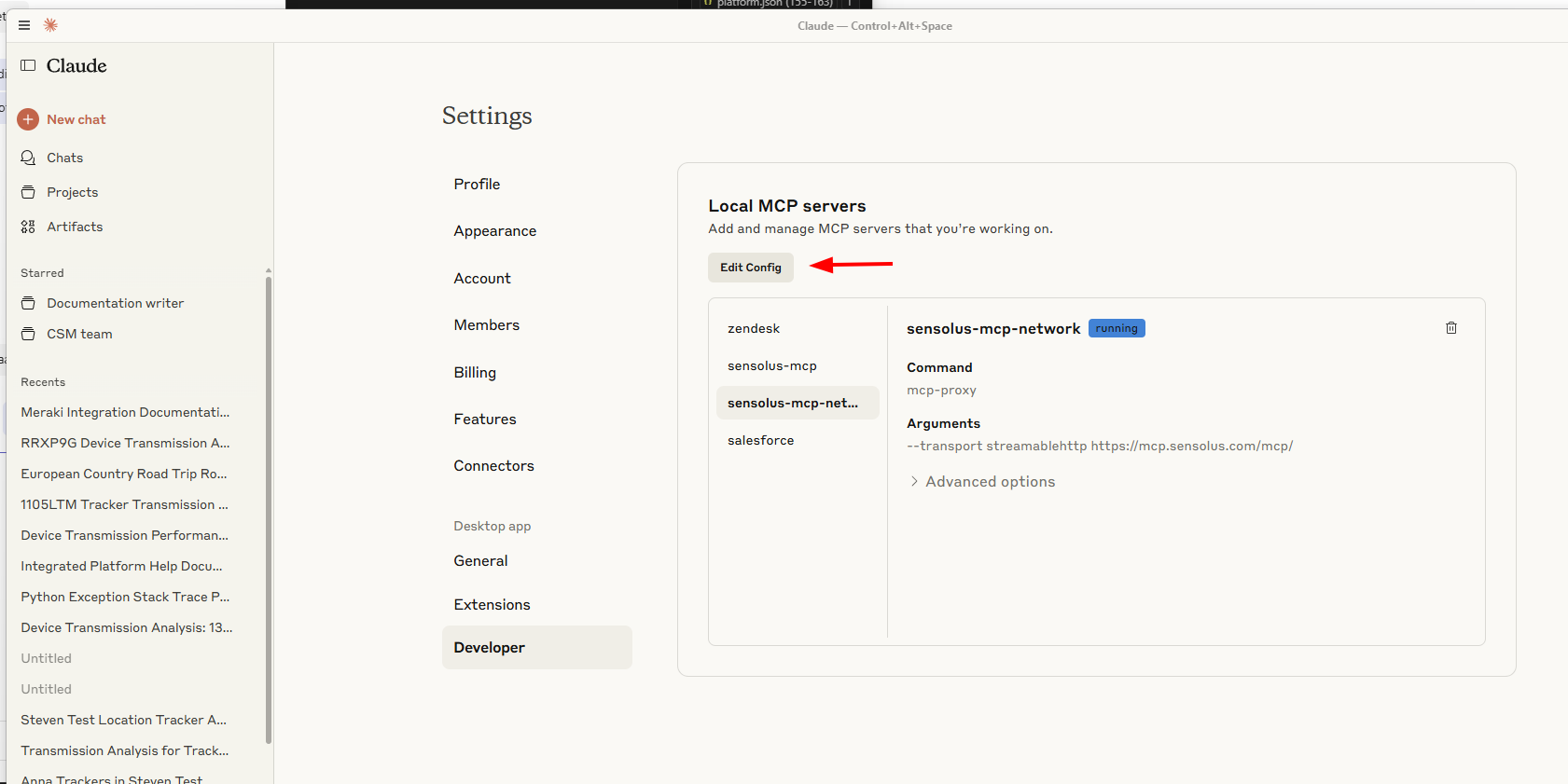
Locate the configuration file
The Claude Desktop configuration file is located at: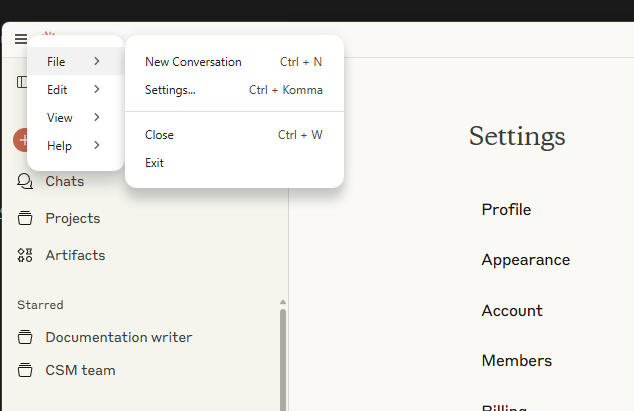
- Windows:
%APPDATA%\Claude\claude_desktop_config.json - macOS:
~/Library/Application Support/Claude/claude_desktop_config.json - Linux:
~/.config/Claude/claude_desktop_config.json
2
Obtain your API access token
Get your Sensolus API access token:
- Log in to the Sensolus platform
- Navigate to Admin → Developers → API access
- Copy your existing API access token or create a new one
3
Edit the configuration
Open the If the file already exists and contains other MCP servers, add the Sensolus configuration to the existing
claude_desktop_config.json file in a text editor. If the file doesn’t exist, create it with the following structure:mcpServers object:4
Add your API access token
Replace
YOUR_API_ACCESS_TOKEN_HERE with your actual Sensolus API access token from the previous step.5
Save and restart Claude Desktop
- Save the configuration file
- Completely quit Claude Desktop (not just close the window)
- Windows: Right-click the system tray icon and select “Quit”
- macOS: Use Cmd+Q or select “Quit Claude” from the menu
- Linux: Close all windows and terminate the process
- Restart Claude Desktop
6
Verify the connection
Once Claude Desktop restarts, verify the MCP connector is active:
- Start a new conversation in Claude Desktop
- Look for the MCP indicator in the conversation interface
- Test the connection by asking: “Can you connect to the Sensolus platform and list available organizations?”
Troubleshooting
Connector Not Appearing
If the Sensolus MCP connector doesn’t appear in Claude Desktop:- Verify the JSON syntax in your configuration file (use a JSON validator)
- Ensure Claude Desktop was completely restarted
- Check that the API access token is valid and has appropriate permissions
- Review Claude Desktop logs for error messages
Authentication Errors
If you receive authentication errors:- Verify your API access token is correct and hasn’t expired
- Ensure your Sensolus account has API access enabled
- Check that your organization has the necessary permissions
- Confirm the API key has the required role-based permissions
Connection Issues
If the connector fails to connect:- Verify your internet connection
- Check if your firewall or proxy allows connections to
mcp.agents.sensolus.com - Ensure you’re using the latest version of Claude Desktop
- Verify the
mcp-proxycommand is available in your system PATH
API Key Management
Security Best Practices
- Store API keys securely and never commit them to version control
- Use organization-level API keys for team setups
- Regularly rotate API keys according to your security policies
- Monitor API usage in the Sensolus platform
- Revoke unused or compromised API keys immediately
Monitoring Usage
Track your API key usage through the Sensolus platform:- Navigate to Admin → Developers → API access
- View current API call consumption
- Check the 12-month usage graph
- Monitor quota limits and remaining calls
Next Steps
- Explore Using Claude with Sensolus
- Review MCP Connector capabilities
- Learn about API key permissions
- Consider creating a Claude team for collaborative use