

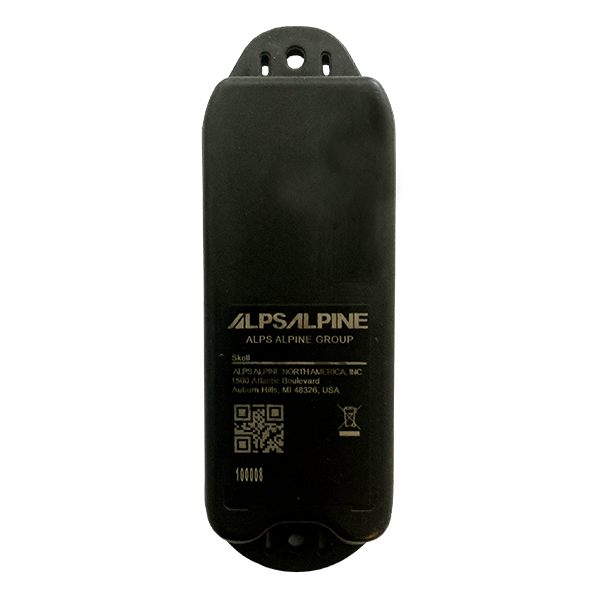
SENSE FL 4300 (pdf)
SENSE FL 4300 (pdf)
Description:
Access level: public
Reference: SDOC-498608282-1368
Download: PDF
Access level: public
Reference: SDOC-498608282-1368
Download: PDF
SENSE FL 4300
BLE Fill-Level Radar Sensor
www.sensolus.com | info@sensolus.com
Radar-based distance sensor with BLE connectivity for
fill-level measurement and loaded/unloaded state
detection. Features configurable measurement
intervals, integrated temperature sensor, and optional
lid detection. Highly configurable for different material
types.
Bluetooth Low Energy 5
5 year battery life
IP67 rated
Ø 133 × 45 × 21mm
90g (3.2 oz)
Sensing & Detection
Technology
Radar-based distance sensor
Detection Range
20cm to 7m
Capabilities
•
Fill level measurement
•
Loaded/unloaded state detection
•
Optional lid open/close detection
Measurement Interval
Configurable (default 60 minutes)
Material Detection
Highly configurable for different material types
Temperature Sensor
Range
-20°C to 65°C
Accuracy
±1.5°C
Connectivity
Technology
Bluetooth Low Energy 5 (BLE 5)
Advertisement Frequency
Every 3 seconds
TX Power
Configurable up to +8dBmSENSE FL 4300
BLE Fill-Level Radar Sensor
www.sensolus.com | info@sensolus.com
Physical Characteristics
Dimensions
Ø 133 × 45 × 21mm
Weight
90 grams (3.2 oz)
Casing Material
PBT/PC UV Stable
Mounting Holes Distance
111.5mm
Mounting Hole Diameter
4mm
IP Rating
IP67
Operating Temperature
-20°C to +85°C
Power
Battery Type
TITUS ER14335 Primary Lithium Thionyl chloride (SOCl₂)
Battery Size
⅔ AA-size, 3.6V, 1.65Ah
Battery Life
5 years with default settings
User Replaceable
Non-replaceable
Configuration
Configurable Features
•
Measurement interval
•
TX power
•
Material type detection parameters
•
Lid open/close detection
•
Measurement pause on lid open
Management Profiles
Available upon request
Installation manual for SENSE FL 4300 (pdf)
Installation manual for SENSE FL 4300 (pdf)
Description:
Access level: public
Reference: SDOC-498608282-1383
Download: PDF
Access level: public
Reference: SDOC-498608282-1383
Download: PDF
Installation manual for SENSE FL 4300
www.sensolus.com | info@sensolus.com
February 2025
The SENSE FL 4300 has two modes: fill level and load detection. This manual covers installation advice for both modes.
Mounting the sensor
All mounting options for your sensor can be found in the Sensolus product mounting instructions.
Load detection
Horizontal mounting
When mounting the sensor horizontally for load detection:
• Install the sensor in the middle of the load
• Install in the middle of the cavity
• Install the sensor so it has a 90° angle with the object it has to detect
Do not install too close to the side and do not install at an angle. The radio signals can be obstructed and cause false sensor
values.Installation manual for SENSE FL 4300
www.sensolus.com | info@sensolus.com
February 2025
Make sure there is a minimum distance of 10 cm between the top of the sensor and the load.
Vertical mounting
When mounting the sensor vertically for load detection, install with the arrow on the back of the sensor facing up.Installation manual for SENSE FL 4300
www.sensolus.com | info@sensolus.com
February 2025
Fill level
Mounting inside an asset
When mounting inside a container for fill level detection:Installation manual for SENSE FL 4300
www.sensolus.com | info@sensolus.com
February 2025
• Install the sensor in the middle of the container
• Install the sensor so it has a 90° angle with the surface it has to detect
Do not install too close to the side and do not install at an angle. The radio signals can be obstructed and cause false sensor
values.
Make sure there is a minimum distance of 10 cm between the top of the sensor and the load.
Mounting outside an asset
When mounting outside a container for fill level detection:Installation manual for SENSE FL 4300
www.sensolus.com | info@sensolus.com
February 2025
• Install the sensor in the middle of the container
• Install the sensor so it has a 90° angle with the surface it has to detect
Do not install too close to the side and do not install at an angle. The radio signals can be obstructed and cause false sensor
values.
Make sure there is a minimum distance of 10 cm between the top of the sensor and the load.Installation manual for SENSE FL 4300
www.sensolus.com | info@sensolus.com
February 2025
Configuration
To configure the sensor profile using the Sensolus app:
Go to Admin → Sensors Select the device you want to configure Tap on the settings icon to go to the configuration page Tap
the three dots in the top right to open the configuration actions menu In the configuration actions menu tap Profile Select the
profile you want to apply to the sensor and tap the save icon on the top right
3D-FILE SENSE FL 4300 (step)
3D-FILE SENSE FL 4300 (step)
Description: 3D-file for SENSE FL 4300 in STEP format
Access level: end-user
Reference: SDOC-498608282-1221
Download: STEP
Access level: end-user
Reference: SDOC-498608282-1221
Download: STEP